Decision Requirements Diagrams
In any DMN model, you start by creating a Decision Requirements Diagram (DRD). A DRD is the visual representation of a DMN model, known as a Decision Requirements Graph (DRG). A DRG can consist of one or more DRDs or diagrams.
You model decisions in diagrams using a standard palette of components.
You can have multiple decisions in the one diagram or spread them over multiple diagrams to avoid complex decision models that are difficult to read.
Before you start modeling your decisions, get to know how diagrams work, how to format them, configure decision definitions, view decision structure and reports, and download decision models and images.
Tour the Design page
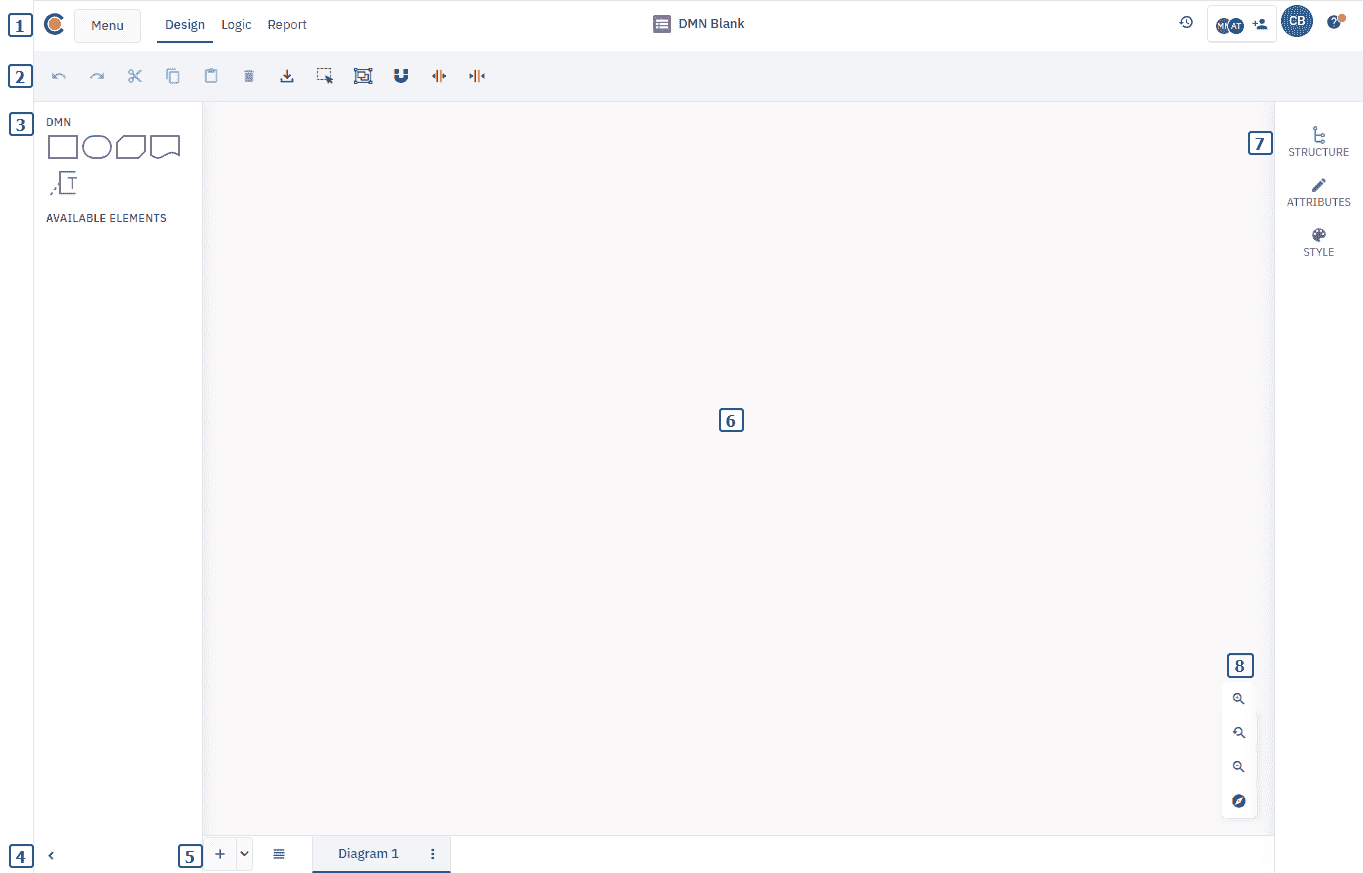
Before you start, get to know the DMN Design page. The Design page is where you model and edit decisions.
-
Header:
-
Cardanit logo: click to go to the Home page.
-
Menu: Go to My Files, rename the project, and navigate to the Simulations page which lists the simulations that have been run.
-
A tab menu that gives you access to the Design, Logic and Report pages.
-
The project name.
-
Access to version history.
-
See who the project is shared with and share the project with others.
-
View your profile.
-
Access the help section.
-
-
Toolbar
Use the toolbar to access key functions. The toolbar also includes options for editing the BPMN model and downloading the diagram or model screenshot.
-
Navigation panel
The Navigation panel shows the components you can use to map your decision model. The Structure tab lets you explore the decision structure.
Click
in the toolbar to open the panel. -
Diagram
This is where you create, map and edit your decisions.
-
Attributes panel
Configure component properties and appearance.
Click
in the toolbar to open the panel. -
View toolbar
The View toolbar provides tools to adjust your view of the diagram. Use it to zoom in, zoom out, reset the view, or open the mini-map for easier navigation of large or complex diagrams.
-
Diagram tab bar
Manage and switch between multiple DMN diagrams. Add new diagrams, rename them and switch between diagrams.