Add elements
There are several ways to add elements to a diagram.
-
From the Elements tab in the Navigation panel.
-
Using the right-click menu.
-
Using connection points.
-
Using the Magnetic Edge tool.
Here you can also learn how to add elements to Pools and Subprocesses.
Elements tab
The Elements tab in the Navigation panel contains all the elements you can use in a diagram. Elements are divided into categories so you can easily find the element you’re looking for.
-
In the toolbar, click
to open the Navigation panel. -
In the Elements tab, select an element, then drag and drop it onto the diagram.
The right-click menu
Right-click an empty point of the diagram to open the menu. This opens the same categories as the Elements tab, so you can add an element without opening the Navigation panel.
-
Right-click an empty point of the diagram.
-
Select a category, then select the element you want to add.
Connection points
When you select an element, four connection points appear around it — one on each side.
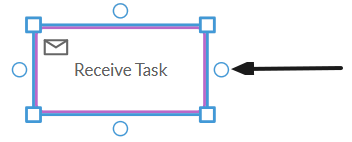
-
Select an element on the diagram.
-
Select a connection point and drag to an empty area of the diagram, then release.
The Element menu opens.
-
Select an element from the Element menu.
The element is automatically connected to the selected element.
Copy and paste
You can add elements by copying an existing one and pasting it elsewhere.
-
Select the element you want to copy.
-
In the action toolbar, click
and select Copy. -
Right-click an empty point of the diagram to open the right-click menu, then select Paste.
Other ways to copy and paste
-
Select an element, click
then select Cut. Right-click an empty point of the diagram and in the menu, select Paste. -
Toolbar: Use the copy
and paste actions. -
Keyboard shortcuts: Ctrl + C to copy and Ctrl + V to paste.
Magnetic edge
The Magnetic Edge tool automatically connects elements as you drag and drop them onto your diagram. Think of it like a magnet; it connects to the closest element.
-
In the toolbar, click
. -
Drag an element from the Elements tab and drop it onto the diagram.
-
Drag another element close to the first one. The Magnetic Edge tool will automatically connect them when they’re positioned correctly.
To deactivate the tool:
- In the toolbar, click
.
Add elements to Pools
You add elements to Pools in the same way that you add elements to a diagram.
However, there are some rules to know before you start:
-
Sequence Flows can’t cross Pool boundaries
-
Message Flows can cross Pool boundaries.
-
Message Flows can’t connect to objects that are within the same Pool.
Add elements to Subprocesses
You add elements to Subprocesses in the same way that you add elements to a diagram.
However, there are some rules to know before you start:
-
Sequence Flows can’t cross Subprocess boundaries
-
Message Flows can cross Subprocess boundaries.
-
Message Flows can’t connect to objects that are within the same Subprocess.
Delete elements
There are two ways to delete elements.
-
Select the element or elements and in the Toolbar, click
. -
Select the element or elements and in the action toolbar, click
and select Delete.