Tools for editing components
Cardanit has several tools that enable you to edit the components in a diagram.
You can use them to create space between components, align them, select components, delete them and more.
Action toolbar
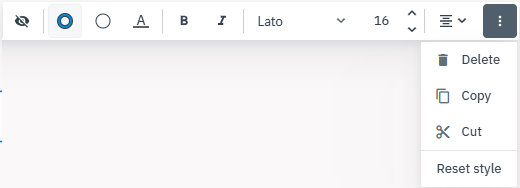
The action toolbar appears above a selected component, giving you quick access to editing tools.
You can:
-
Copy, cut, or delete the component.
-
Reset the component’s style.
-
Align components.
Create space tool
You can use the create space and remove space tools if you need to create space for additional components or reduce the diagram size.
Create space
-
Click
. The moment you activate the tool, guides appear in the diagram.
-
Position the pointer over the area of the diagram where you want to create space.
-
Click, hold and drag in the direction you need to create space — horizontally or vertically — then release.
To deactivate the tool, click
again or press ESC. 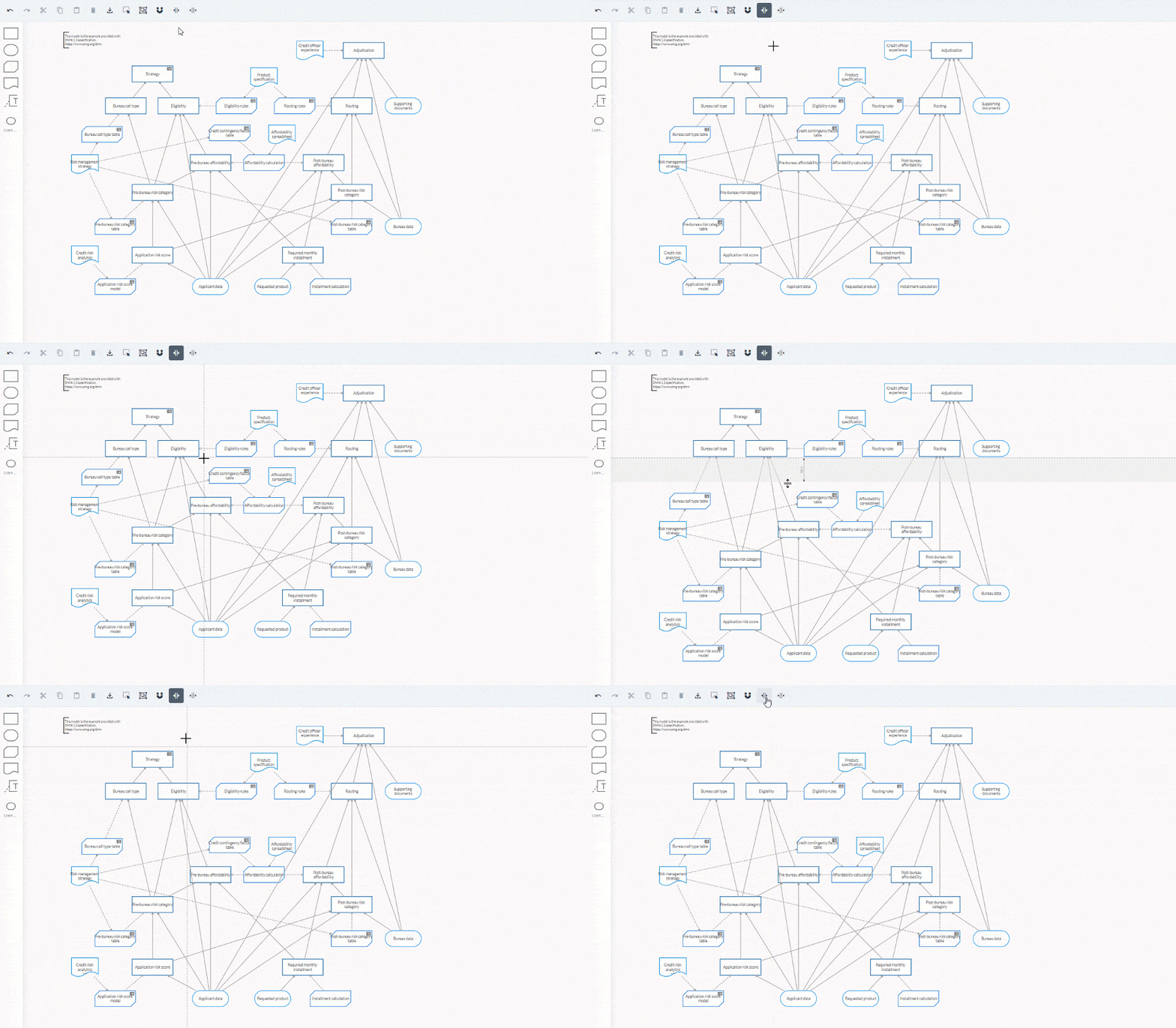
Remove space
-
Click
. -
Position the pointer over the area where you want to remove space.
-
Click, hold and drag in the direction you need to remove space — horizontally or vertically — then release.
To deactivate the tool, click
again or press ESC.
Select components
There are several ways to select components in a diagram.
You can select a component by clicking on it or by using the Rectangular Selection or Select All tools.
Once you’ve selected the components you can move, copy, delete or align them.
Rectangular selection tool
This tool enables you to select multiple components in the diagram.
-
In the Toolbar, click
 .
. -
Click and drag the pointer to define an area around the components you want to select.
To deactivate the tool, click
again or press ESC.
Select all tool
This tool enables you to select all the components in the diagram.
-
In the toolbar, click
 .
.To deactivate the tool, click
again or press ESC.
Align components
You can align and distribute one or multiple components using the action toolbar or align and distribute them manually using guides and margins.
Align with the action toolbar
Align components vertically or horizontally.
When you align components vertically you can also align them to the right, left and in the center. When you align components horizontally you can also align them at the top, bottom or in the middle.
-
Select the components you want to align.
-
In the action toolbar, click
to open available alignment options.
Align manually
If you’re adding components from the Navigation panel you can use the guides that appear to help you align them.
Vertical and horizontal guides appear when you drag and drop a component near another element. Margins also appear to help you distribute them evenly.