Tools for editing elements
Cardanit has several tools that enable you to edit the elements in a diagram.
You can use them to create space between elements, align them, select elements, delete them and more.
Action toolbar
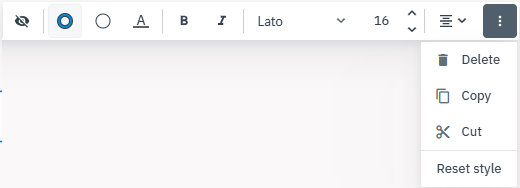
The action toolbar appears above a selected element, giving you quick access to editing tools.
You can:
-
Copy, cut, or delete the element.
-
Reset the element’s style.
-
Align elements.
Create space tool
You can use the create space and remove space tools if you need to create space for additional elements or reduce the diagram size.
Create space
-
Click
. The moment you activate the tool, guides appear in the diagram.
-
Position the pointer over the area of the diagram where you want to create space.
-
Click, hold and drag in the direction you need to create space — horizontally or vertically — then release.
To deactivate the tool, click
again or press ESC. 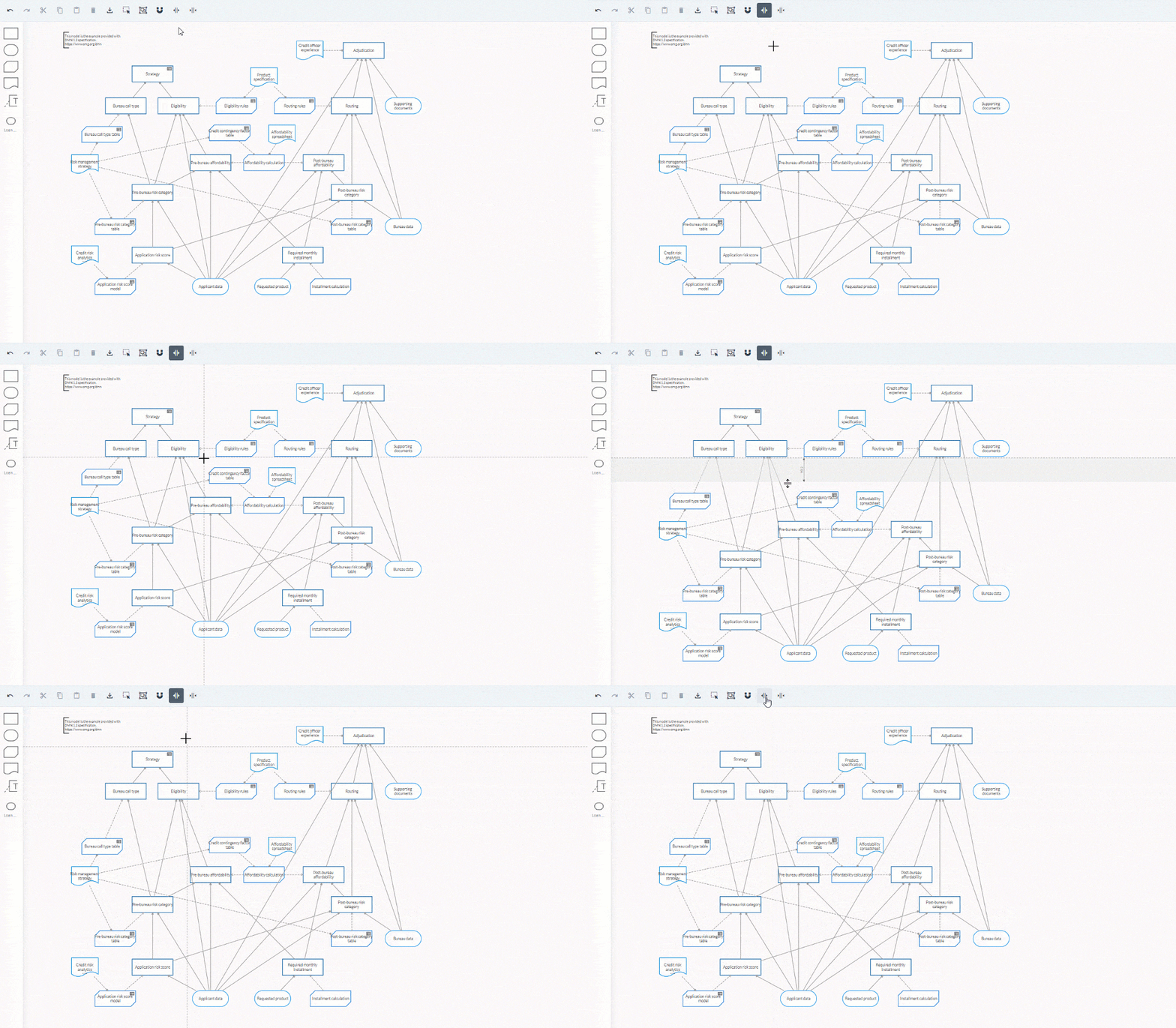
Remove space
-
Click
. -
Position the pointer over the area where you want to remove space.
-
Click, hold and drag in the direction you need to remove space — horizontally or vertically — then release.
To deactivate the tool, click
again or press ESC.
Select elements
There are several ways to select elements in a diagram.
-
Click individual elements on the diagram.
-
Drag a selection box around multiple elements.
Selection mode
Selection mode is active by default. Click and drag across the diagram to draw a selection box around the elements you want to select.
If you’re in Pan mode, click
Align elements
You can align and distribute one or multiple elements using the action toolbar or align and distribute them manually using guides and margins.
Align with the action toolbar
Align elements vertically or horizontally.
When you align elements vertically you can also align them to the right, left and in the center. When you align elements horizontally you can also align them at the top, bottom or in the middle.
-
Select the elements you want to align.
-
In the action toolbar, click
to open available alignment options.
Align manually
If you’re adding elements from the Project panel you can use the guides that appear to help you align them.
Vertical and horizontal guides appear when you drag and drop an element near another element. Margins also appear to help you distribute them evenly.
Undo and redo actions
When you’re adding elements to a diagram or editing them, it can be useful to undo and redo your actions.
You find the undo