Add elements
There are several ways to add elements to a diagram.
-
From the Elements tab in the Project panel.
-
Using the right-click menu.
-
Using connection points.
Elements tab
The Elements tab in the Project panel contains all the elements you can use in a diagram.
-
Click
to open the Project panel. -
Select an element, then drag and drop it onto the diagram.
The right-click menu
Right-click an empty point of the diagram to open the menu. This opens the same categories as the Elements tab.
-
Right-click an empty point of the diagram.
-
Select a category, then select the element you want to add.
Connection points
When you select an element, four connection points appear around it — one on each side.
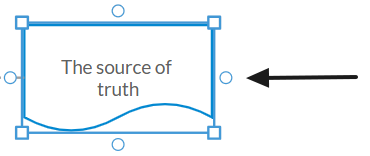
-
Select an element on the diagram.
-
Select a connection point and drag to an empty area of the diagram, then release.
The DMN element menu opens.
-
Select an element from the menu.
The new element is automatically connected to the selected element.
Copy and paste
You can add elements by copying an existing one and pasting it elsewhere.
-
Select the element you want to copy.
-
In the action toolbar, click
and select Copy. -
Right-click an empty point of the diagram to open the right-click menu, then select Paste.
Other ways to copy and paste
-
Select an element, click
then select Cut. Right-click an empty point of the diagram and in the menu, select Paste. -
Keyboard shortcuts: Ctrl + C to copy and Ctrl + V to paste.
Hide elements
You can hide elements in a diagram when you want to focus on an area of the decision tree without the distraction of unwanted elements.
When you hide an element, the marker  is added to the element the hidden element was connected to.
The elements you hide are placed in the Project panel under the Available elements section.
You can restore a hidden element. If it was connected to other elements, the links are automatically restored.
To hide an element:
-
Select the element.
-
In the action toolbar, click
.
To restore a hidden element to a diagram:
- In the Project panel, in Available elements, select the element, hold, then drag and drop it onto the diagram.
Delete elements
There are two ways to delete elements.
-
Select the element or elements and in the action toolbar, click
and select Delete. -
Select the element or elements and press Delete on your keyboard.